
Reformat, MIP, MinIP and mean
Reformat, below the card of a stack with at least three images, creates images in another plane, and can combine a slab of the volume into a projection.
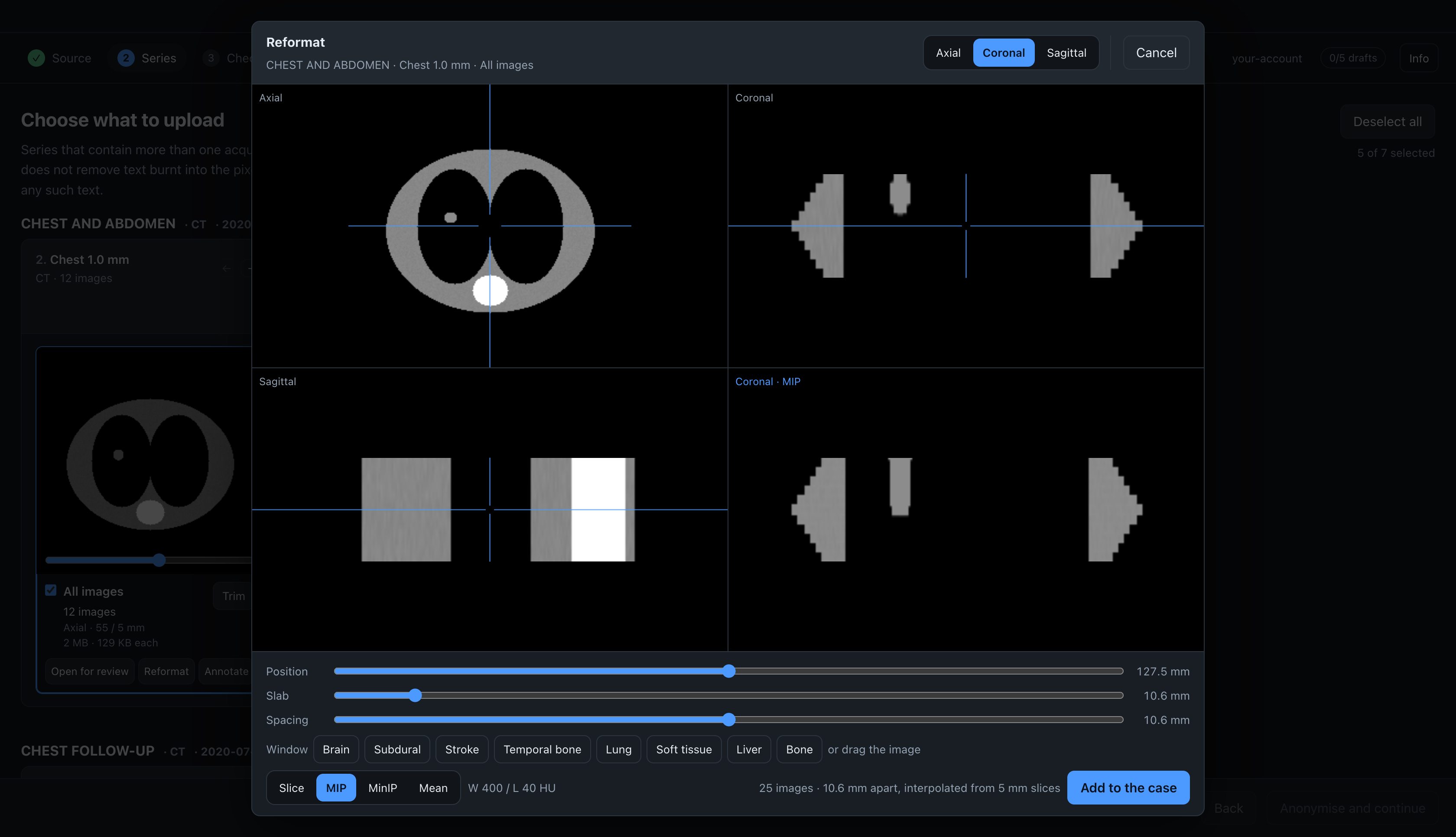
The dialog has four panes. Three show the volume in the axial, coronal and sagittal planes and are used to navigate; the fourth shows the image that will be added to the case. Drag the centre of the crosshair in any navigation pane to move the position, and the other panes follow. The mouse wheel moves through the pane under the pointer.
Drag an arm of the crosshair to rotate the other two planes around the plane of that pane; use this to align a plane with anatomy that is not straight in the scanner. The pointer shows a cross where a drag moves the position and a hand where it rotates. Straighten returns the planes to their original orientation. After a rotation, the series is named Oblique in the dialog and in its series description.
The window is set on the result pane: drag right to widen it and down to raise its centre. All four panes use the same window.
Add to the case adds the result to the case as a new series, next to the series it was made from. It is anonymised and uploaded like any other series. The images are real DICOM files, written to the session's temporary folder and deleted with it.
Controls
| Control | What it sets |
|---|---|
| Axial / Coronal / Sagittal | the plane of the result |
| Slice / MIP / MinIP / Mean | how a slab is combined into one image |
| Position | where the slab is; dragging the crosshair changes it too |
| Slab | the slab thickness, in millimetres |
| Spacing | the distance between the images that are created |
MIP shows the brightest value through the slab, for vessels, contrast and bone. MinIP shows the darkest value, for airways, emphysema and fat. Mean shows the average, which reduces noise and also detail. Slice shows a single plane and ignores the slab thickness.
The number next to Add to the case shows how many images the current settings will create. Choose a number a reader will look through: 25 coronal images are easy to review, 200 are not.
Window
Drag on the result pane to set the window. The current values are shown next to the buttons as W (width) and L (level). The window on screen when you click Add to the case is written to the new images.
For CT, the CT window presets are available here too. A MIP of a 10 mm slab usually needs a wider window than the source slices.
The dialog opens with the window stored in the files (WindowCenter and WindowWidth), if that window covers at least a fifth of the range of values in the volume. Otherwise it uses the range from the 1st to the 99th percentile of the volume. This avoids an unusable starting window when a file stores a window that does not match its data. If you set a window in Open for review, that window is used.
The starting window is set once, when the volume is built, so it does not change as you move through the volume.
Colour series
A colour series, such as a DTI direction map, a fused PET or a Doppler image stored as RGB, can be reformatted in any plane, and the new images are RGB. MIP, MinIP and Mean are not available for colour, because combining the channels of different voxels produces colours that are not in the study, and there is no window control for colour images.
Two kinds of colour images cannot be reformatted:
- palette colour, where each pixel stores an index into a colour table, so values between two pixels have no meaning;
- colour stored as YBR in the file. Colour that is YBR only inside a JPEG is fine, because the decoder returns RGB.
Planes
The planes are the patient's axial, coronal and sagittal planes, calculated from ImageOrientationPatient. For example, a brain FLAIR acquired sagittally shows a true axial image in the axial pane. If the files do not state their orientation, the app uses the planes of the acquisition and shows a note next to the Add to the case button.
If the gantry was tilted or the patient's position was angled, the planes are correct but the anatomy in them is not straight; rotate the crosshair to align them.
The reformatted images are built from the last slice of the stack towards the first, so the end of the stack is at the top of a coronal or sagittal image. For a study acquired feet first, check that the result is not upside down before adding it.
Resolution
The new images have square pixels at the finest in-plane spacing of the volume: 0.7 mm pixels for a CT with 0.7 mm pixels, whatever its slice spacing. This is fixed.
Between slices, the app interpolates. A coronal reformat of a study with 5 mm slices has the detail of 5 mm slices.
A projection (MIP, MinIP or Mean) uses the original image planes inside the slab, not interpolated samples, so a thin bright vessel keeps its full brightness. A rotated plane has no original image planes to use, so it is sampled at half the finest spacing. A rotated image is also larger than a straight one, because it crosses the volume diagonally.
When a stack cannot be reformatted
The dialog shows the reason when a stack:
- has fewer than three images;
- has gaps between images that vary by more than 10%, for example after an image was dropped;
- has images of different sizes or in different units;
- is palette colour, or colour stored as anything other than RGB (see colour series);
- has no pixel spacing;
- would need a volume larger than 512 MB.
What the reformat keeps from the source stack
Areas you erased on the source stack are erased in the volume before it is built, and the crop is applied before it too. So a banner erased on the axial images does not appear in a coronal reformat, and the new images carry the position of the cropped area. On colour series, the erased area is black in all three channels. The window you chose for the source stack is used.
Projections are calculated on the stored values, and the rescale is kept, so a MIP of a CT is still in Hounsfield units.
The new series has ImageType DERIVED\SECONDARY\MIP (or MINIP, MEAN or MPR), its own series UID, and the orientation of the plane it was made in, so viewers, including this app when the series is imported again, show it the right way round.