Import a study
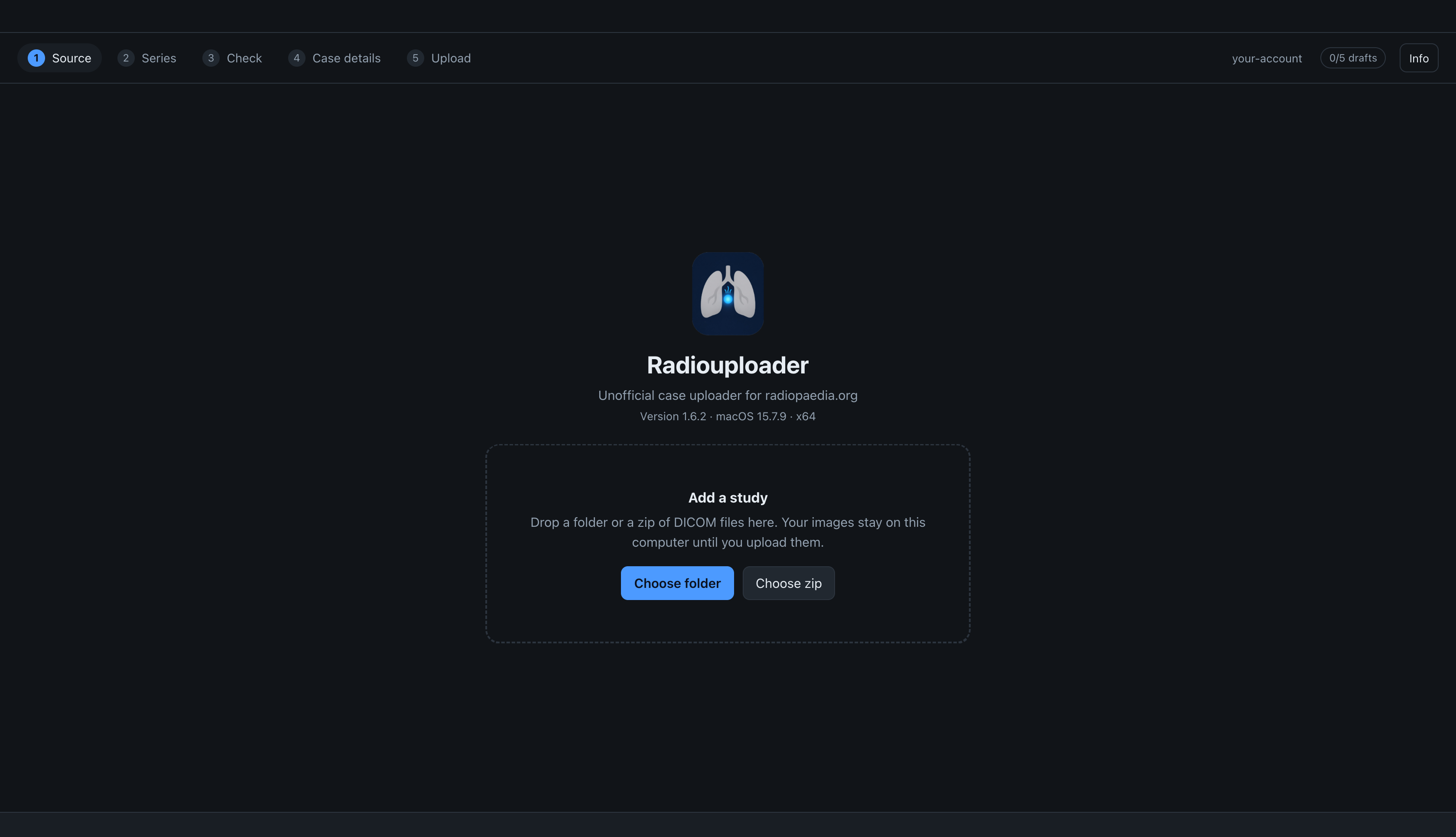
Sign in to Radiopaedia first: the app does not import a study until you are signed in (see install and sign in).
Drop a folder, a zip file or a set of DICOM files onto the window, or use Choose folder or Choose zip. The app reads subfolders too, so you can choose the top folder of a CD or DVD export.
A zip file is extracted into a temporary folder. If extracting it would leave less than about 500 MB of free disk space, the app refuses the zip before extracting anything and shows how much space it needs. In that case, extract the zip yourself somewhere with more space and choose the folder.
Nothing is sent to Radiopaedia while you import, review and anonymise. The app only connects to the internet to sign in, to list your draft cases, to upload, and at launch to check GitHub for a newer version (which you can turn off in Info).
Files that are skipped
Files that are not DICOM, such as DICOMDIR, viewer programs and readme files, are skipped without a message.
DICOM objects without pixel data, such as presentation states, structured reports and Philips raw data, are also skipped, so they never appear as series. Files that cannot be read at all are counted, and the count is shown at the top of the next screen.
What the app reads from the files
The app reads the DICOM tags from the original files, before anonymisation. Anonymisation removes most of them: b-values are often in private tags, and StudyDate is cleared. The app needs them to split series and to order studies; see splitting before anonymisation.
Each DICOM study becomes one study in the Radiopaedia case, oldest first. The dates are not uploaded. Instead, each study gets a caption with the interval from the first one, such as "Baseline" or "3 months later", which you can edit before uploading.