
Choose what to upload
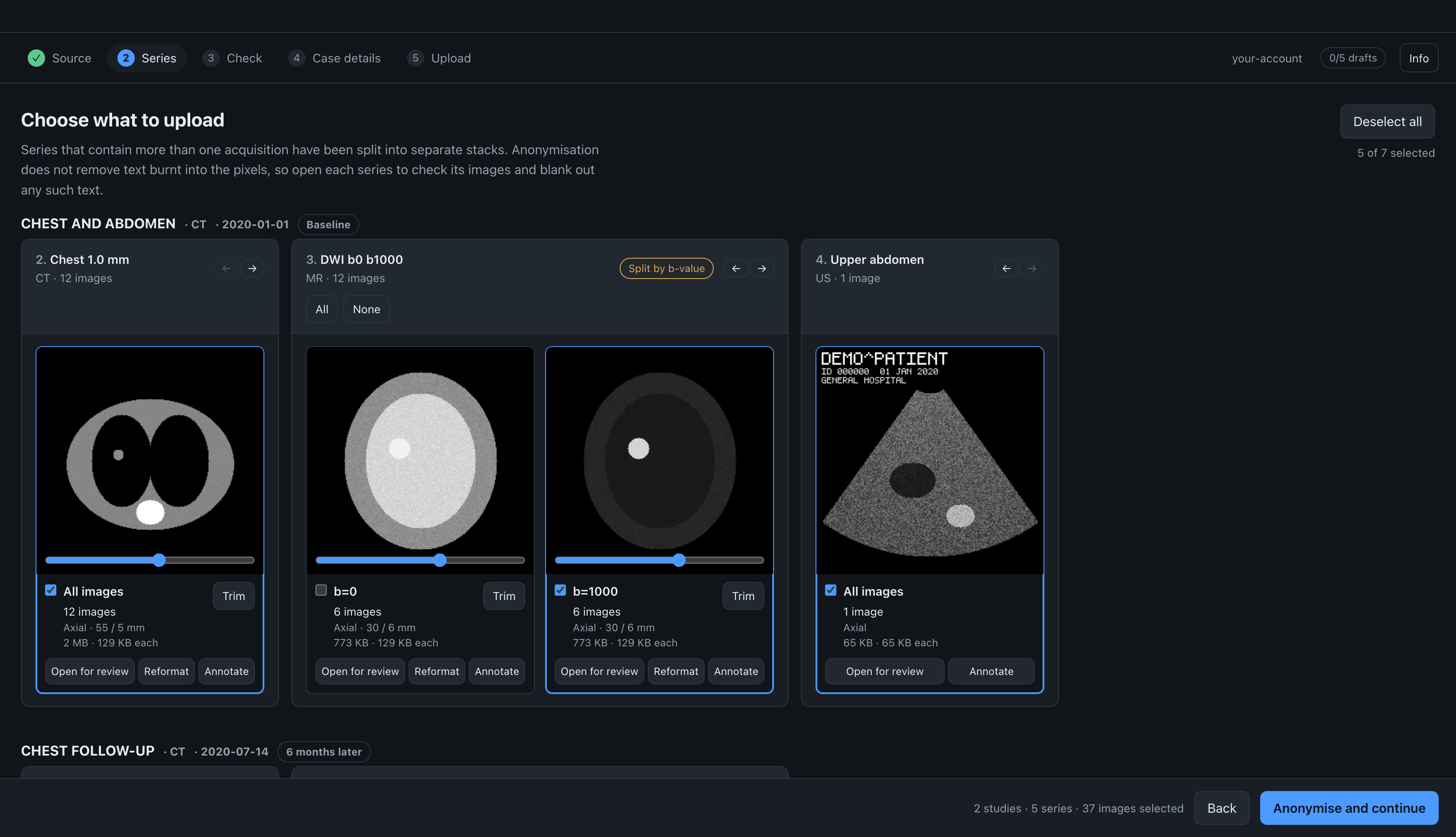
Each study is shown as a horizontal row, oldest study first. Within a study, each series has a heading, and each stack is a card with a preview. A stack is a set of images that is uploaded as one series. Usually a stack is a whole series; a series that contains more than one acquisition is split into several stacks.
In the example above, the CT is one stack of 12 images. The diffusion series was split by b-value into b=0 and b=1000, and its heading shows the badge Split by b-value.
The rows scroll sideways, so series stay next to each other and are easier to compare. The series heading stays with its cards, together with its All, None and (for split phases) Keep one phase buttons.
To look through a stack's images, scroll with the mouse wheel or trackpad over its card. The row does not move while the pointer is over a card.
Changing the order of series
Use the arrows in a series heading to move it left or right. Series arrive in the order the scanner numbered them, which is the order they were acquired. You may want a different order for the case, for example the localiser first and the sequence that shows the finding last.
The order matters: Radiopaedia has no way to reorder series after upload, so the case keeps the order in which the app uploads them, which is the order shown here.
Studies are ordered by date, oldest first, and the interval between them becomes the study caption. Studies from different days cannot be moved. Studies from the same day have arrows too, and can be moved only among themselves. To order them, the app uses StudyTime, or the earliest acquisition time if there is no study time. If neither is present, the studies stay in the order they were read, and you can move them. When two studies share a date, their headings also show the time.
You can also change the order by dragging the thumbnails in the check before anonymising.
What a card shows
Below the preview, a card shows:
- The number of images, and how many are left after trimming.
- The plane, extent and spacing, for example
Axial · 55 / 5 mm: the plane in the patient's axes, the distance the stack covers, and the distance between images. The spacing is the median gap, so a stack with a missing slice still shows a spacing that occurs between its images. A cine shows none of these, because all its frames are in the same place. - The size of the stack and of one image. When a stack takes only some frames of a file (a phase of an enhanced object, or one b-value), it is counted as that share of the file.
- The compression, shown only for compressed images. A compressed image that you blank or crop is uploaded uncompressed and becomes larger.
Nothing is drawn over the preview, because patient banners are often in the top corners of an image. The Open for review, Reformat and Annotate buttons are below the card and always visible.
Selected and unselected stacks
A selected stack has a coloured border and a ticked box. Unselected stacks are shown at full brightness too, so that you can still see any text in them.
Default selection
When a series is split, some stacks are selected by default:
- phase, real and imaginary maps are not selected when a magnitude image is present;
- in a diffusion series, the highest b-value and the ADC map are selected;
- every time point of a dynamic series is selected;
- every stack of an enhanced object split by
StackIDis selected.
To keep only one phase of a multiphase series, click Keep one phase in its heading. This selects the first phase and clears the others.
Dynamic series by phase or by slice
A dynamic series, such as a pituitary dynamic, is split into one stack per time point: 18 phases of 5 slices give 18 stacks of 5 images. Scrolling one of them moves through the slices at one moment.
To follow the enhancement instead, click By slice in the series heading. The series then has one stack per slice position, each holding that slice at every time point in order: 5 stacks of 18 images. Scrolling one of them shows the contrast arriving. Keep one slice selects the first slice and clears the others, for a case that shows only the slice through the lesion. By phase goes back.
When each time point holds a single image, as in a 4D angiogram exported as one MIP per phase, By slice gives one stack with all the phases in order.
The buttons appear only when every phase has the same slices at the same positions. Areas you have erased are kept when you switch, and are applied to every stack of the series, since a banner is in the same place on all of them. A crop or a window is kept only if every stack of the series had the same one. Trims and dropped images are reset.
With a large export, it is often quicker to click Deselect all and then select the few series you need.
Trimming
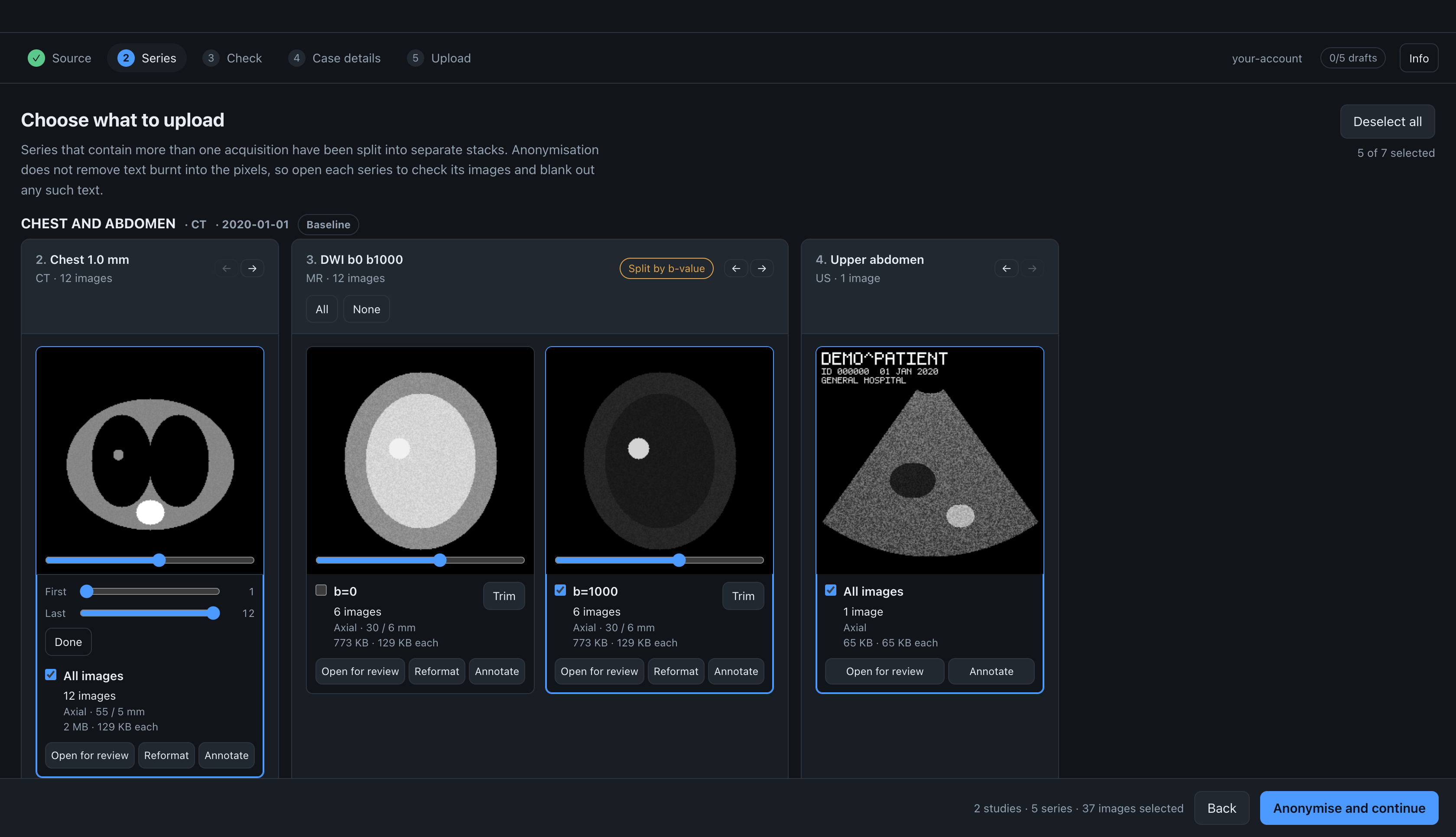
Trim sets the first and last image to upload, so you can leave out, for example, localiser slices at the start and the end of a stack without leaving out the whole stack. Moving either handle shows that image in the preview. Images outside the range are dimmed and marked not uploaded. They are not processed or uploaded.
To leave out a single image in the middle of a stack, open the stack and use Drop image in the viewer (see review). The card shows both as N of M images, with the range and the number of dropped images.
Formats
The preview reads uncompressed DICOM and every still-image compression in DICOM: JPEG, lossless JPEG, JPEG-LS, JPEG 2000, HTJ2K and RLE. It also reads DICOM video (MPEG-2, H.264 and HEVC). If an image cannot be read, the card shows the reason instead of the image.
You can review, window, blank and crop a compressed image like any other. It is uploaded unchanged unless its pixels have to change: a blanked area, a crop, or a multiframe run being split into single images. In that case it is decoded first and uploaded uncompressed, so the file is larger. See known limitations.
A video is decoded into its frames, which you can review, blank and crop like any other run, and each frame is uploaded as JPEG. The first time you open a video takes a few seconds, because the whole video is decoded at once.
If a stack is in a format the app cannot read at all, the card says so instead of showing a tick box, and the number of such stacks is shown next to the number of selected stacks.